Android + Windows

Control your PC from your phone.

A real touchpad, a full keyboard, media keys and a remote for whatever is playing. Reach your desk over Wi-Fi, from anywhere over the internet, or over Bluetooth with nothing installed on the PC.

Free to download No account needed Windows 10 and 11

Try it — drag the pad
Drag here
Tap to click

Wi-Fi — phone and PC on the same network. Every feature available.

Connection

Three ways to reach your PC.

Pick whichever suits the moment. The app switches between them without losing your layouts or shortcuts.

Local network

Wi-Fi

The full product. Screen sharing, file transfer and everything else, staying entirely on your own network with no cloud in between.

Needs the free Windows server

From anywhere

Internet

Left the house and forgot to shut something down? Reach the same PC from any connection, relayed through our server.

Needs the server, and premium

No install

Bluetooth New

Your phone pairs as an ordinary Bluetooth keyboard and mouse. Works on a locked-down work laptop, and needs no network whatsoever.

Nothing on the PC at all

Why it matters

The only remote that needs nothing on the PC.

Every other remote-control app asks you to install a companion first. Bluetooth mode skips that entirely — Windows sees a standard input device, so it works on machines where you cannot install anything: a locked work laptop, a friend's desktop, a conference room PC.

Because it speaks the standard keyboard and mouse protocol, it covers pointer, typing, shortcuts and media keys — but not screen sharing or file transfer, which need software on the other end to answer.

Features

One app for the whole machine.

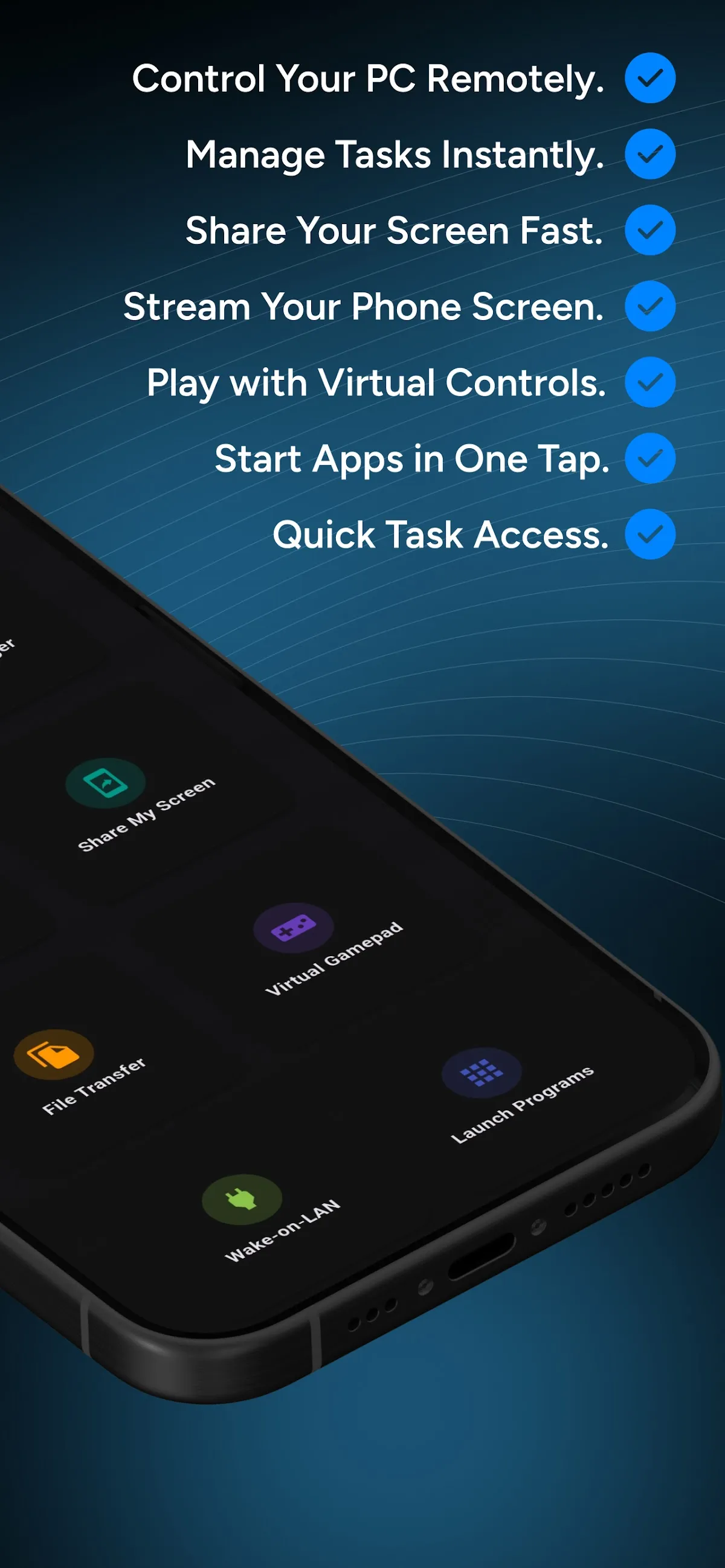
Five features are free forever. The rest are part of the premium unlock, and every one of them can be tried by watching a short ad.

Remote control

Precision touchpad with tap, right-click, scroll and drag, plus a full keyboard.

Free

Video remote

Play, pause and skip YouTube, Netflix or TikTok without waking the screen.

Free

Wake-on-LAN

Boot a sleeping PC from bed, then connect to it a few seconds later.

Free

Performance monitor

Live CPU, GPU, memory and temperature while you game on the big screen.

Free

Clipboard sync

Copy on one device, paste on the other. Links, codes, whole paragraphs.

Free

Screen share

Your desktop, live on the phone, for when you need to see what you are doing.

Premium

Remote split

Screen above, touchpad below. The closest thing to sitting at the desk.

Premium

File transfer

Move files either direction over your own network. No cables, no size caps.

Premium

Task manager

Kill a frozen app and check what is eating the CPU without walking over.

Premium

Virtual gamepad

A customisable controller for games that never shipped with one.

Premium

Automations

Record a sequence of clicks and keys once, then replay it from a button.

Premium

Second screen

Use the phone as an extra monitor for chat, notes or a reference window.

Premium

Program launcher

Start any app on the PC from a tile — or from an Android home-screen widget.

Premium

Custom shortcuts

Build your own button panels for Photoshop, VLC, Spotify or anything else.

Included

Magnifier

Zoom into a corner of the desktop when the text is too small from the couch.

Included

Notification mirroring

See phone notifications on the PC so you can leave the handset face down.

Included

Not sure something is worth paying for?

Every premium feature can be unlocked temporarily by watching a short ad, so you can try the real thing on your own PC before deciding. See what free includes

In the app

What it actually looks like.

Real screens straight off a phone, not mockups.

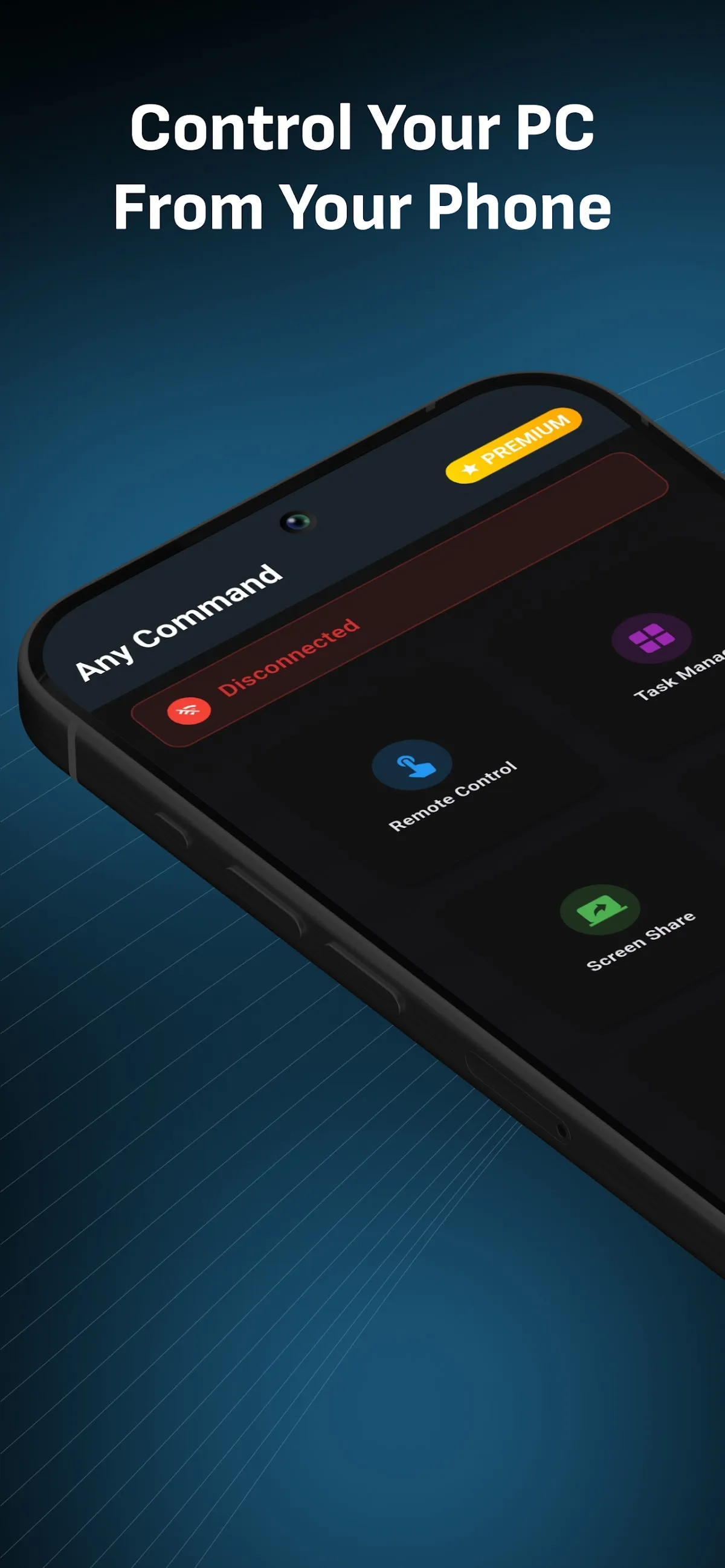
Any Command home screen listing Remote Control, Video Remote, Performance Monitor, Wake-on-LAN, Task Manager and Screen Share
Everything on one screenEvery tool one tap away, with the free ones up top.
Performance monitor showing live CPU usage with clock speed, memory use in gigabytes and disk capacity
Live readingsCPU, clock speed, memory and disk, updating as you watch.
Pairing sheet with a QR code option, manual IP entry, PIN field and a trust this device checkbox
Pairing, onceScan the QR code or type the PIN, then trust the device for good.
Setup

Running in about a minute.

Install the server

Run the Windows installer on the PC you want to control. It sits in the tray and shows a PIN.

Download for Windows

Install the app

Grab Any Command on your phone or tablet. Keep both devices on the same Wi-Fi for the first pairing.

Get it on Google Play

Type the PIN

Enter the number from the server window once. After that the app reconnects to that PC on its own.

No account, no sign-up, no email.

Cannot install anything on that PC?

Skip all three steps and use Bluetooth instead. Pair the phone as a keyboard and mouse, and you have pointer, typing and media keys with nothing on the machine. Read how

Questions

Before you install.

Do I need to install anything on my PC?

For Wi-Fi and internet control, yes — the free Windows server does the work on the PC side. It runs in the tray and starts with Windows if you want it to.

In Bluetooth mode you do not. Your phone pairs as an ordinary Bluetooth keyboard and mouse, which Windows already knows how to talk to, so nothing gets installed at all.

Does it work without internet?

Yes. Wi-Fi mode keeps every byte on your own network with no cloud in between, and Bluetooth mode needs no network whatsoever. Internet relay is the only mode where traffic leaves your home, and it is opt-in.

Why does Windows Defender warn about the installer?

The installer is digitally signed, but Microsoft SmartScreen also weighs how many people have run a given signed build. A fresh release starts with no reputation, so Windows shows a caution the first few thousand times it is installed.

Choose More info, then Run anyway. If you would rather verify first, the download page lists the file hash so you can check it before running.

Is there a PIN because I need an account?

No. Any Command has no accounts, no sign-up and no email. The PIN is generated by the server on your own PC and shown in its window — it exists so a stranger on the same Wi-Fi cannot pair with your machine. You type it once.

Which Android and Windows versions are supported?

Android 8.0 and later for the app, and Windows 10 or 11 for the server. Bluetooth mode additionally needs Android 9 or later, because that is when Android gained the ability to act as a Bluetooth input device.

Is it really free?

The app and the server are free. Remote control, video remote, Wake-on-LAN, performance monitor and clipboard sync stay free with no time limit. Screen sharing, file transfer, the gamepad and a few others are part of the premium unlock — and each can be tried by watching a short ad first. Full breakdown